LiDAR-camera calibration online
MOLA cloud · online tool
Record a calibration board in front of your LiDAR and camera, upload the ROS bag, and get the camera's position and orientation relative to the LiDAR: the extrinsic calibration. Images of the LiDAR points drawn over the camera view show that it is right.
Calibrate LiDAR and camera online About the target
Sign in with GitHub or an email address.
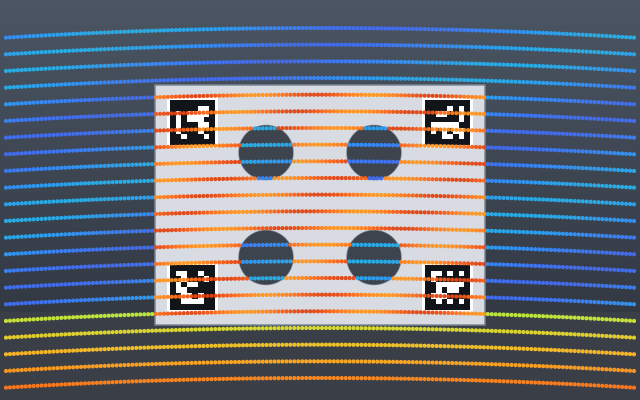
- InputA ROS bag with the point cloud, the camera images and
/tf - TargetA rigid board with four circular holes and four ArUco markers
- OutputCamera pose as YAML, residuals, and overlay images
- IntrinsicsFrom the bag's
CameraInfo, a YAML file, or a camera calibration job
How it works
- Get a targetBuy the ready-made board, or build one: its geometry is below.
- Record a ROS bagHold the board still in front of both sensors for a few seconds, then move it to another place and angle. Repeat for at least three positions.
- Upload and describe the boardPick a board preset or type its dimensions, and check the LiDAR and camera topics the app proposes.
- Download the resultThe camera pose in the reference frame you choose, with its residuals and the overlay images.
The frames where the board is still and visible to both sensors are chosen automatically, so there is no frame-by-frame review to do.
The calibration target
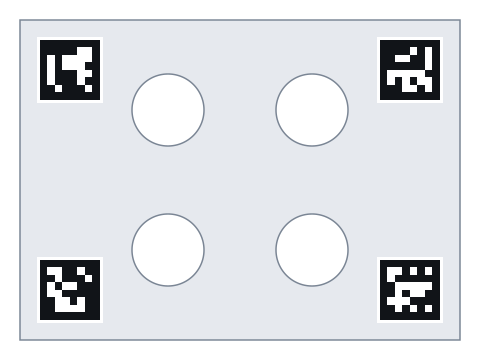
The LiDAR finds the four holes in the point cloud, and the camera finds the four ArUco markers in the image. Since the board geometry relates both, every position of the board ties the two sensors together.
The board form in the app has three presets, and you can type your own dimensions (hole radius, hole spacing, marker size and position, ArUco dictionary and IDs):
The ready-made board sold by BYMIG (Spain).
The board used by the FAST-Calib project.
MOLA’s own design.
To build your own, cut the holes precisely (laser or CNC) in a rigid, flat sheet, print the markers at their exact size, and glue them flat in place.
Recording tips
Leave space behind the board. The LiDAR must see through the holes to a surface farther away, such as a wall, so that the edges of the holes stand out.
Fit the whole board in the camera image, with several LiDAR rings crossing every hole. With a LiDAR of few beams, bring the board closer or tilt it.
Keep the board still for a few seconds at each position.
Vary the positions: left and right, near and far, turned and tilted. Three is the minimum; more give a better-conditioned result.
Record the point cloud, the camera images (and their
CameraInfoif the camera publishes it),/tfand/tf_static.
What you get
A YAML file with the camera pose relative to the LiDAR, or to another frame of your
/tftree, ready to publish as a static transform.The residuals of the fit.
Overlay images: the LiDAR points of each selected frame drawn over the camera image. When the calibration is right, the points line up with the edges of the holes and of the board.
The camera intrinsics come from the CameraInfo messages in the bag, from a YAML file you
upload, or from a camera calibration you ran before.
Running it on your own machines
To run the calibration on your own machines, the source code of the tool is included in MOLA Pro.
Coming soon, for Pro accounts: calibrating every LiDAR, camera, IMU and GNSS antenna of a vehicle at once, without a target, from a drive in circles and figure-eights.
Frequently asked questions
- Which LiDARs can I calibrate?
Any LiDAR recorded as
sensor_msgs/PointCloud2. The holes are easier to find with more rings across the board, so with a 16-beam LiDAR place the board closer than with a 128-beam one.- Do I need the camera intrinsics first?
Yes. If your camera does not publish a calibrated
CameraInfo, run a camera calibration online first and use its result.- Where can I get a target board?
Buy the ready-made board from BYMIG, or build one with the dimensions above and enter them in the board form.
- Where is my data processed?
On our server in Spain (EU). Each job runs in an isolated container with no network access.
- How do I use the result in ROS 2?
Publish the pose as a static transform between the LiDAR frame (or your vehicle frame) and the camera frame, in your URDF or with
static_transform_publisher.
Calibrate your LiDAR and camera
Upload a ROS bag of the target board and get the camera pose.